
Guide
How to use AI for CAD
AI can design real, dimensioned CAD parts today: cases, brackets, mounts, furniture, even machines with moving parts. It works best when the AI writes the model as code, sees the result, and you check and correct it in short steps. This guide compares the ways to do that and shows the workflow step by step.
What AI can and cannot do in CAD
Language models do not draw. What they are good at is writing code, and a lot of CAD can be written as code: a box of 120 × 80 × 40 mm, a 2 mm wall, four holes for M3 screws 5 mm from each edge. Code-based CAD libraries such as CadQuery and build123d (Python) or OpenSCAD turn that code into a solid model. Because the model is code, every dimension is exact and every change is a small edit.
AI does well with:
- Mechanical parts made of simple features: plates, boxes, holes, slots, fillets, chamfers, patterns
- Enclosures for electronics, brackets, mounts, adapters, organizers and furniture
- Parametric models: change one value and the whole part follows
- Assemblies with standard parts like screws, bearings and aluminium extrusions
- The boring parts: drawings, cutting lists, export in several formats
It struggles with organic, sculpted shapes (figures, ergonomic grips with free-form surfaces), with judging what looks good, and with fit it cannot know: how much clearance your printer needs, where the real connector on your board sits. That is your part of the job.
Four ways to use AI for CAD
| Approach | How it works | Good for | Watch out for |
|---|---|---|---|
| Text-to-CAD services | You type a description, the service generates a model. | Quick first shapes and simple parts without installing anything. | Little control over details; check how you can edit the result and in which formats you get it. |
| A chatbot writes CAD code | ChatGPT, Claude or Gemini write a script for OpenSCAD, CadQuery or build123d, which you run yourself. | Free or cheap, precise dimensions, the code is editable. | The chatbot cannot see the result. You copy code back and forth and describe every error yourself. |
| AI inside a CAD program | Assistants and generative design in classic CAD programs. | If you already work in that program: help with commands, optimized shapes for given loads. | You still model yourself; the AI helps, it does not design the part from a description. |
| A coding agent in a CAD workspace | An agent such as Claude Code or Codex writes the model as code, builds it, looks at it, and fixes it. | Complete parts and assemblies from a description, refined in conversation, exact geometry, STEP export. | Needs a subscription for the agent; you still check dimensions and fit. |
The decisive difference is the feedback loop. A human designer looks at the model after every step. An AI that only writes code and never sees the result makes the same mistakes again: parts that float in the air, holes on the wrong side. The more of the loop the AI can close itself, building, looking, measuring, the better the result.
Step by step: a part with a coding agent
This is the workflow with SOMA, a free, open-source CAD workspace built for this. The same ideas apply to any setup where an agent writes CAD code and can run it.
- Install the app and an agent. Download SOMA for Windows, macOS or Linux. It includes Python, CadQuery and everything needed to build models. You also need a CLI coding agent such as Claude Code, Codex CLI, OpenCode or Gemini CLI, installed and signed in.
- Start a new model and the agent. Click New model, then the + above the terminal to start your agent in the model's folder. The agent finds the project rules and knows how to build and check the model.
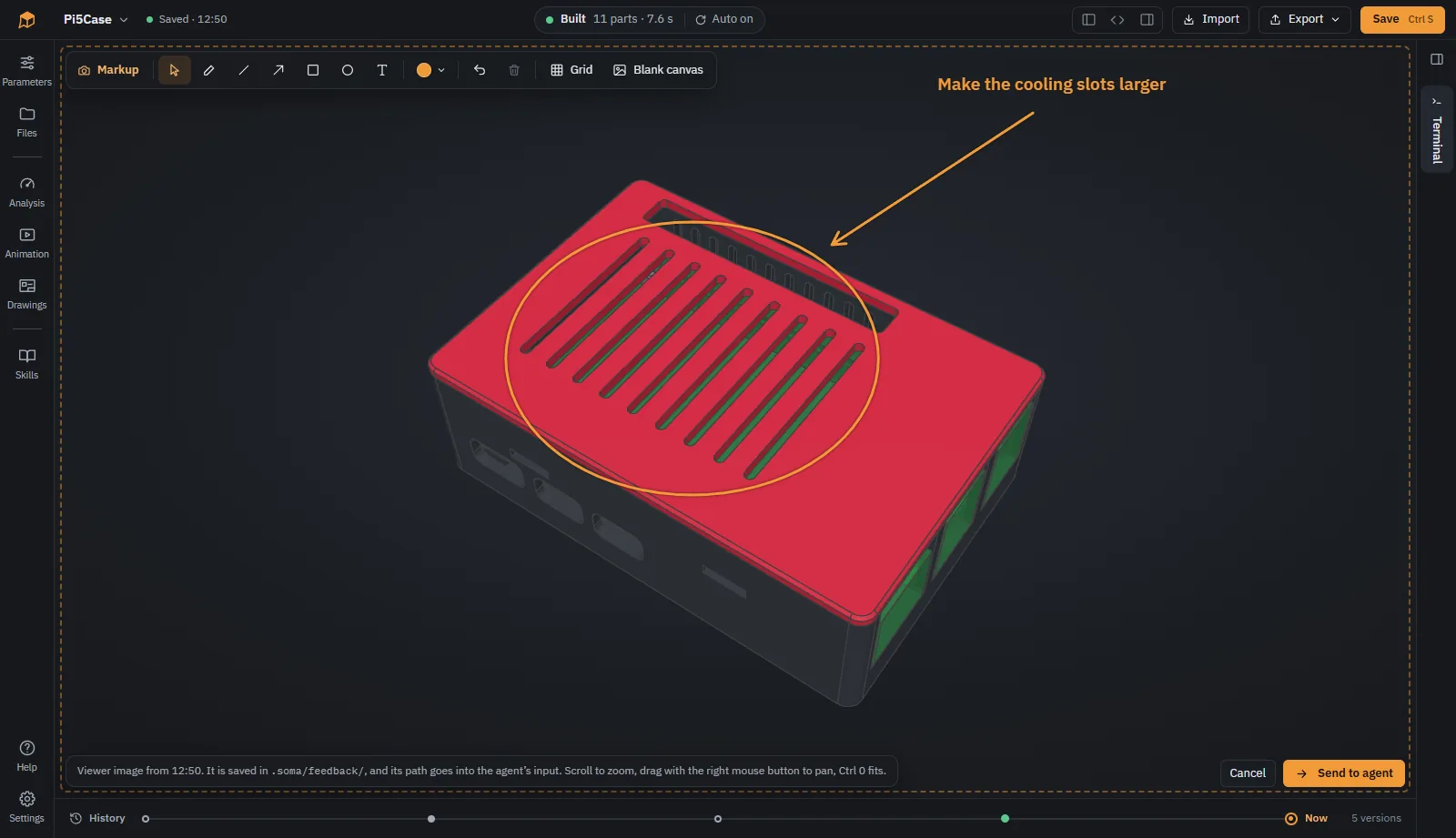
- Describe the part. For example: “A case for a Raspberry Pi 5 with vents in the lid, printed in PETG.” The agent writes the model, SOMA builds it on every change and shows it in 3D.
- Look and point. Turn the model, cut it open, measure. When something is wrong, click the part or draw on the view and send it to the agent: “this hole should be 2 mm further left” is clearer with an arrow on it.
- Refine in small steps. One change at a time works better than a long list. Every step is saved, so you can go back to any earlier version.
- Export. STL or 3MF for the slicer, STEP for other CAD programs, DXF for the laser cutter, or ask for technical drawings.
A real example: the prompt “Design a Scandinavian-style sideboard from 19 mm chipboard, 1800 × 450 × 800 mm, with two doors, three drawers and slim wooden legs. Create manufacturing drawings and a cutting list.” produced the sideboard on the models page, with hinges, drawer slides, five drawing sheets and a cutting list.
How to write good CAD prompts
- Give numbers and units. Outer size, wall thickness, hole diameters, screw sizes. “Small box” leaves the agent guessing.
- Say how it will be made. 3D printed in PETG, milled from aluminium, cut from 19 mm plywood. The process decides wall thickness, overhangs, radii and tolerances.
- Name the parts it has to fit. “For a Raspberry Pi 5”, “for a 40 × 40 mm fan”, “M3 heat-set inserts”. If you have a STEP file of the board, import it: the agent can model around the real geometry.
- Show, do not only tell. A sketch with dimensions, a photo of the old part or a drawing helps as much as with a human designer.
- Ask for parameters. “Make wall thickness and the number of compartments adjustable” gives you sliders instead of new prompts.
- Keep the requirements in one place. SOMA has a notes file the agent reads every time. Decisions written there are not forgotten three prompts later.
- One change per message once the first version stands. Check it, then the next.
Check the result
Trust, but measure. The AI writes exact numbers, but it can put them in the wrong place. Before you print or order parts:
- Measure the dimensions that matter: hole spacing, inner size, the distance to the connector.
- Cut the model open to see walls, ribs and hidden collisions.
- For printing, check overhangs and thin walls. SOMA can analyze both and color the problem areas.
- For load-bearing parts, a quick strength check with finite elements shows where it bends.
- Print a small test piece for tight fits before the full part.
Designing a case for electronics? See how to design a 3D printed enclosure with AI, with an example prompt and rules of thumb for printing.
Limits
- Free-form shapes: code-based CAD is made for mechanical parts. For sculpted shapes, a mesh or surface modeling tool is the better choice.
- Very large assemblies take longer to build and to discuss. Split them into modules and work on one at a time.
- Responsibility: for parts where failure is dangerous, the AI's design is a draft that an engineer checks, like any other draft.
- Cost: the agent needs a subscription or API credits. Small parts take a few prompts, a complex assembly can take an afternoon.
Questions
Can ChatGPT make CAD models?
Yes, indirectly. Chatbots like ChatGPT, Claude or Gemini can write code for code-based CAD such as OpenSCAD or CadQuery, and that code produces the model. The difficulty is that a chatbot cannot see what its code produces. A coding agent in a CAD workspace closes that gap: it builds the model, checks it, and fixes its own mistakes.
Is AI-made CAD accurate enough for 3D printing and CNC?
The geometry is as exact as the numbers in the code: a 3 mm wall is 3 mm. What the AI gets wrong is usually the design, not the precision: a hole in the wrong place, a part that does not fit its neighbor. Measure the important dimensions and print a test piece before a long print.
Do I need to know programming to use AI for CAD?
No. With a coding agent you describe the part in plain language and point at what is wrong. The code is there if you want to change a number yourself, but you do not have to read it.
What is the best free AI CAD tool?
It depends on what you need. To try the idea, ask a chatbot for an OpenSCAD script and open it in OpenSCAD, both are free. For real parts, an agent in a workspace saves the copying back and forth: SOMA is free and open source, the agent needs its own subscription.
Try it
SOMA is free and open source. Bring the agent you already use.